
How to Use Degree Audit Tool
Degree Audit
Plan and Check Your Progress with Degree Works
Degree Works is an online tool that makes it easy to build your educational plan and check your progress—by reviewing the coursework you've completed and comparing against the requirements for your desired degree or certificate.
For assistance using Degree Works or determining your eligibility to graduate, make an appointment with a counselor.
Use Degree Works to Build Your Ed PlanView your progress toward earning your associate degree or certificate See how your current courses apply to your graduation requirements. Determine how changing your major will affect your graduation date. Calculate your grade point average. |
Reminders
- Plan at least one quarter ahead to get priority registration.
- Plan at least three quarters ahead to see your path forward.
- Meet with your counselor to review and ask questions.
Quick Guide for Navigating Degree Works
Degree Works includes a user dashboard with new functions, easy navigation, and accessibility compliance under under the Americans with Disabilities Act. Your counselor can help with any questions you may have about format and functions.
General or Technical Questions
- For general questions regarding your education plan, contact our Foothill Counseling Office.
- For technical assistance, contact the Foothill Evaluations Office.
After you log in with your 8-digit student CWID, you'll find your student information and progress as numbered on the dashboard example:
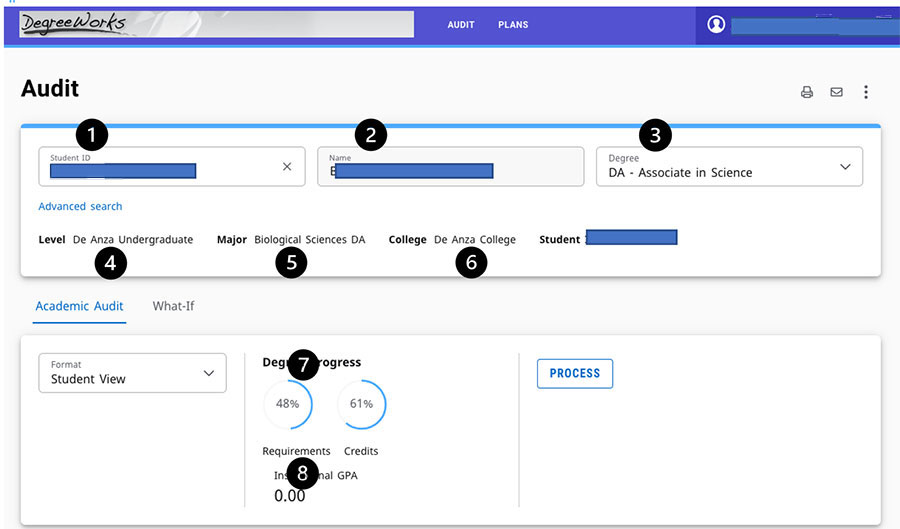
- Student CWID Number.
- Student Name.
- Degree: AA, AS, ADT, Certificate.
- Level: Undergraduate.
- Major: Program the student is enrolled in; major code from CCCApply.
- College: Foothill or De Anza.
- Degree Progress: Percentage toward completion.
- Institutional GPA: GPA based on courses from the student’s home school.
The responsive version of the Academic Audit is structured in blocks. These blocks include:
- Degree – Associate in…
-
Type of associate degree
(Examples: AA, AS, ADT)
- General Education
-
Name of general education pattern type
(Examples: local college’s GE, CSU GE, and IGETC)
- GE Pattern Areas
-
Local GE: All areas listed in one block
Transfer GE: Summary of areas block; then separate blocks for each area
- Major
-
Major course requirements
- Prerequisites
-
Each college has majors/programs with prerequisites and an application process. Depending on how each college has prerequisites set up in DW, they may either be built into the major section OR have their own block. (Example: Allied Health programs)
- Electives
-
Previously “Fallthrough Courses” in Classic version. Courses that are degree-applicable, but not being used as part of the major or GE pattern. This block will only appear if the student has taken courses that apply to this area.
- Non-Degree Applicable
-
Previously “Not Counted” in Classic Version. Courses that were taken and do not apply to the degree. (Examples: Courses numbered above 99 for ADTs and 199 for AA/AS degrees.) This block will only appear if the student has taken courses that apply to this area.
- In-Progress
-
Student is registered for course and in-progress. This block will only appear if a student has course(s) in-progress.
- Exceptions
-
Exceptions are courses that have been reviewed and approved for use to replace a required course.
- Not Counted
-
Previously “Insufficient” in Classic version. D’s, F’s, NP’s, W’s, EW’s that cannot be counted toward GE, major and/or electives. This block will only appear if the student has taken courses that apply to this area.
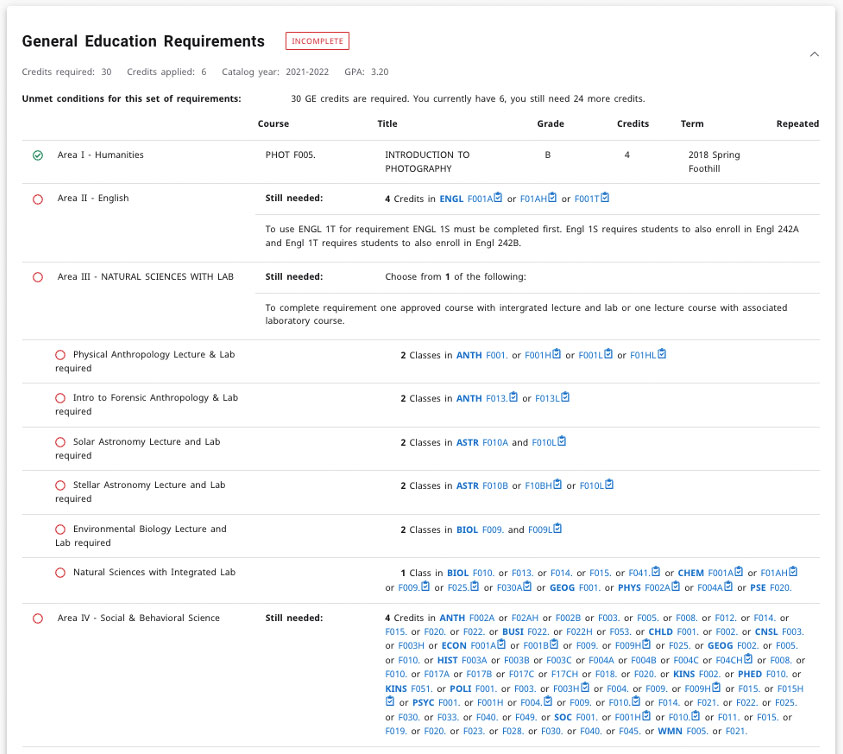
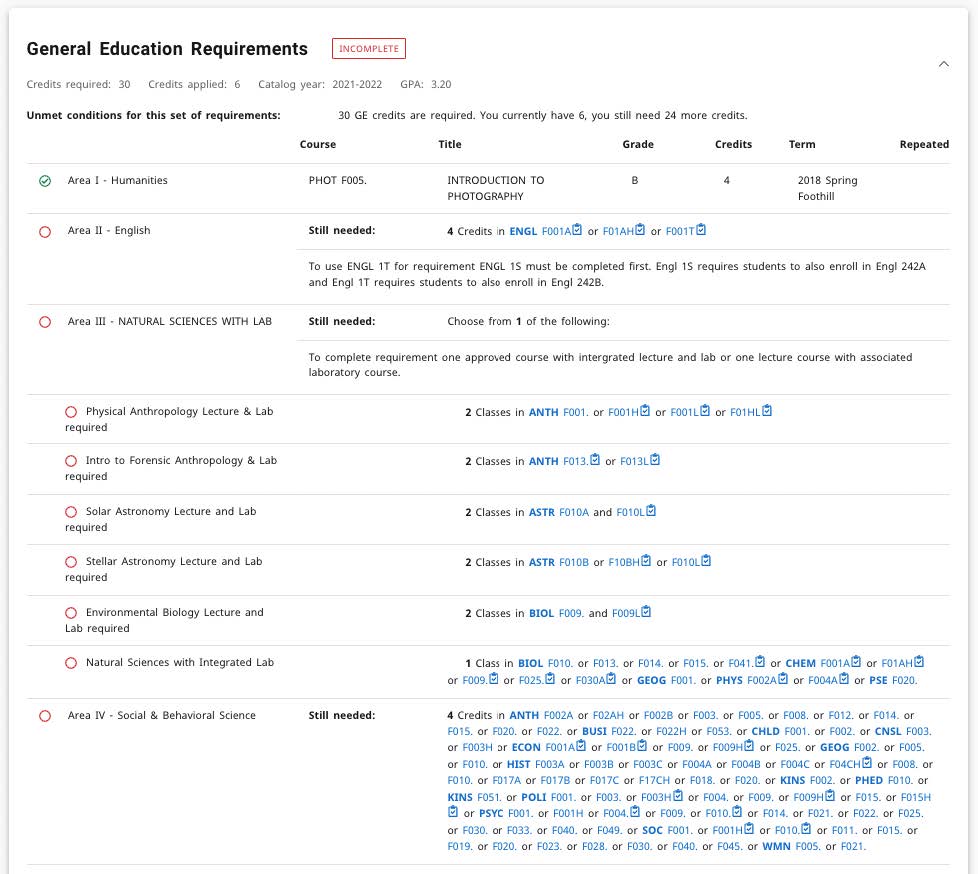
The left side of the audit displays the required courses. The right side provides specific details regarding completed courses or options for future enrollment.
Complete requirements are denoted by a green check mark on the left. This is followed by course name, grade, number of credits, and term the course was taken to the right.
Incomplete requirements are denoted by a read circle on the left. Degree Works will list courses that may meet that requirement. You can click on a blue-colored course and a pop-up with a brief course description will appear.
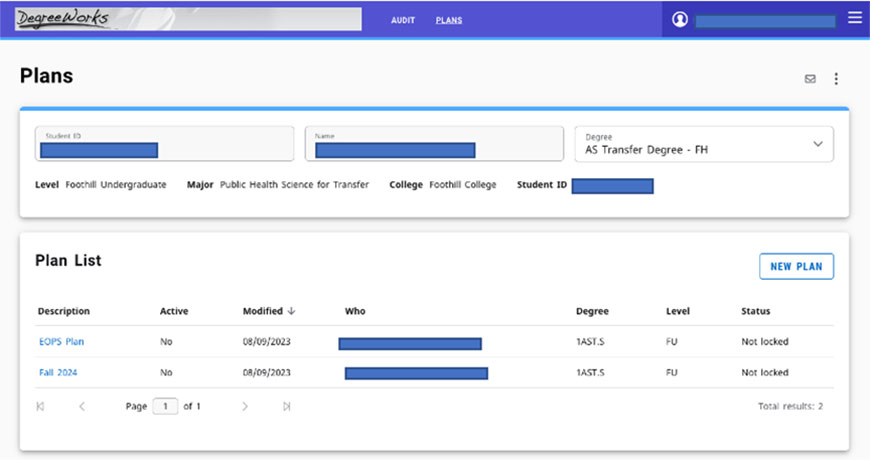
Select the Plans tab to view your educational plan created by your counselor.
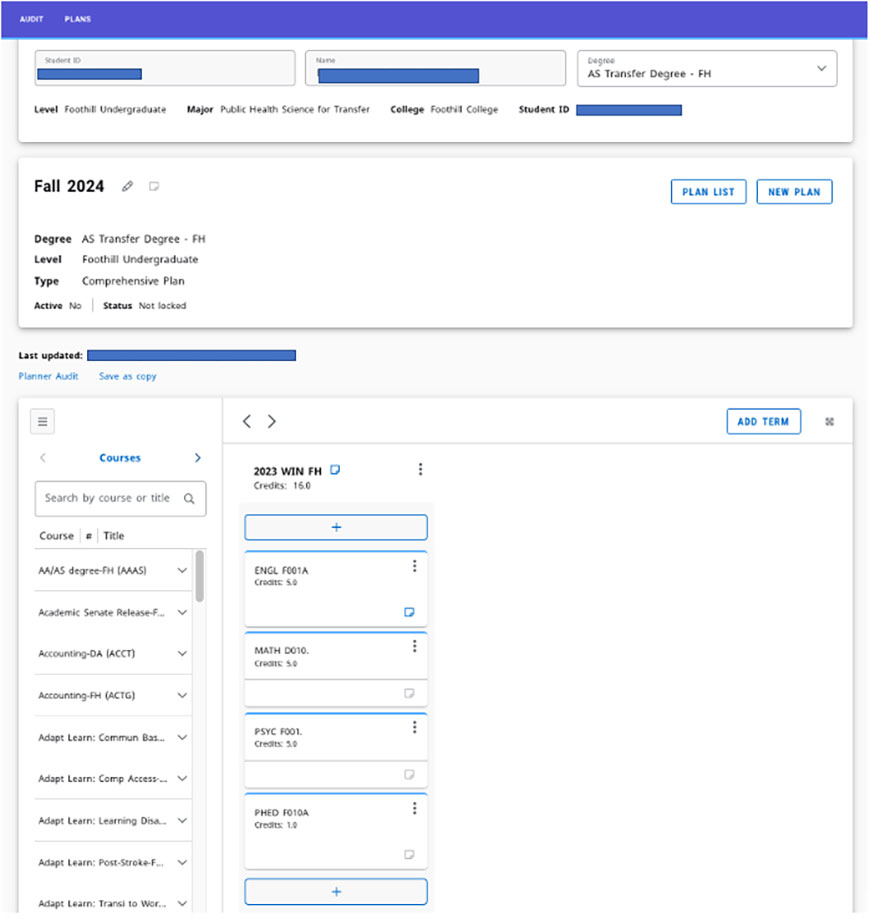
After selecting a plan, you can see the courses mapped out for you for each quarter.
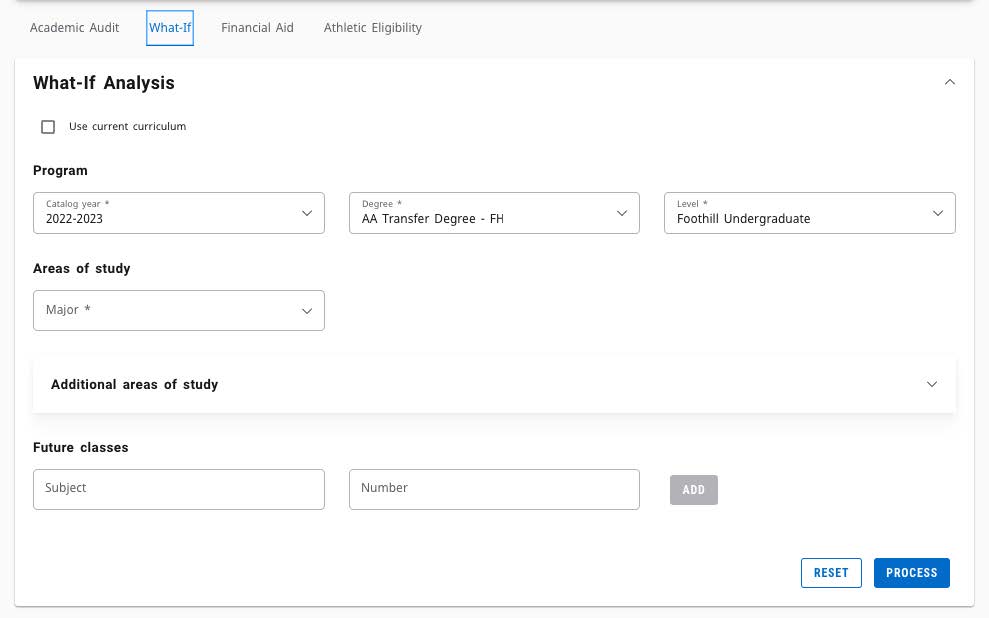
The “What If” function allows you to see your progress towards another major or review the courses needed for another major. It is a great tool to use if you are exploring our options.
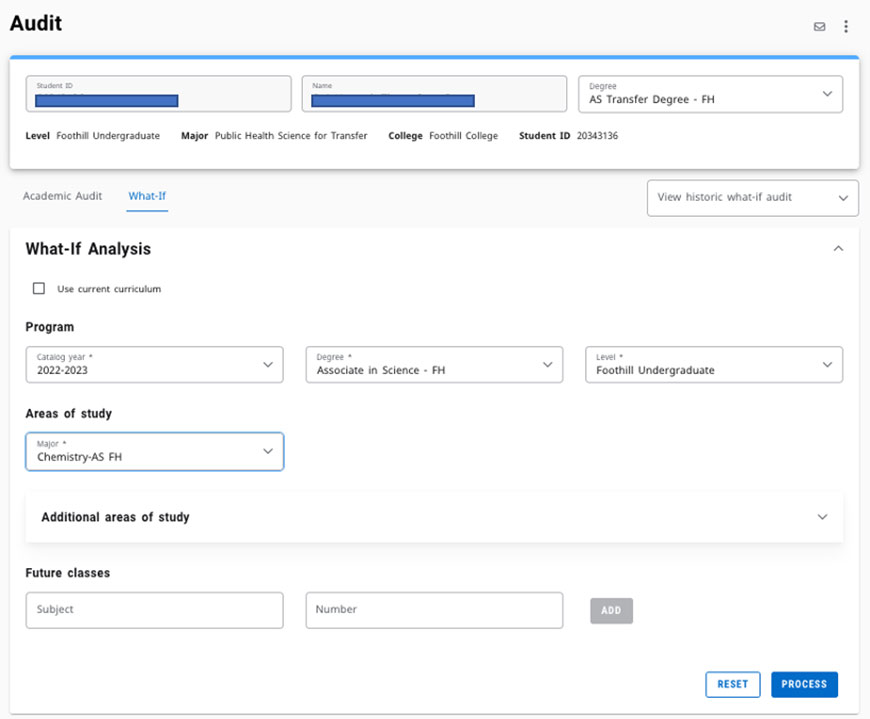
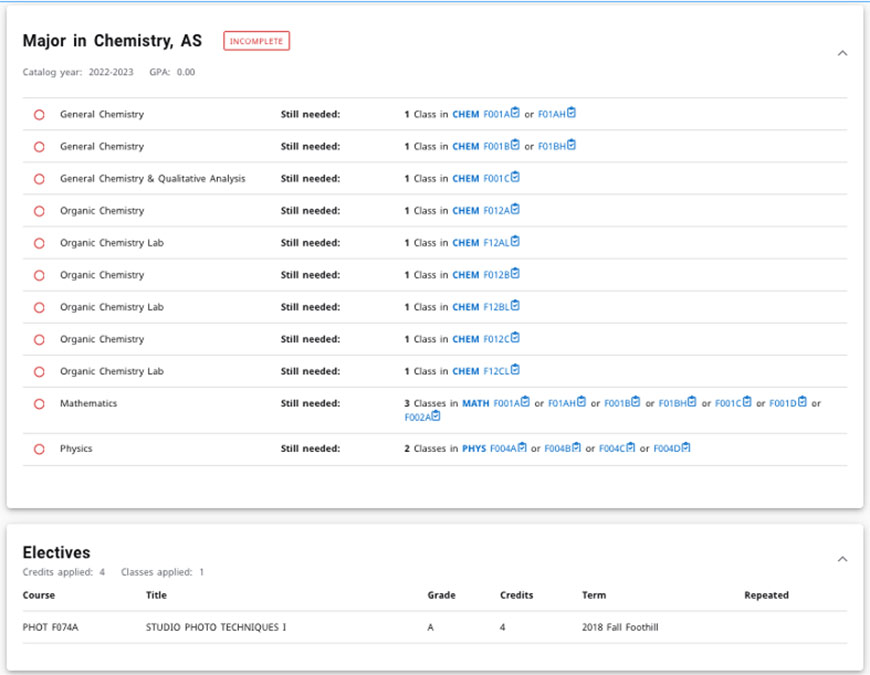
View this example of exploring requirements for a Chemistry, AS.
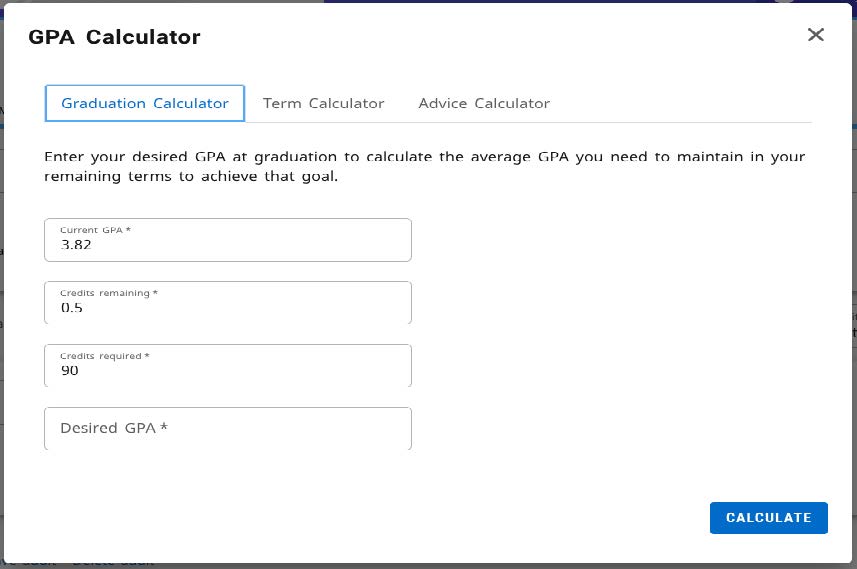
The GPA calculator is intended for planning purposes and may not reflect your official GPA. It offers three tools: the Graduation Calculator, Term Calculator and Advice Calculator.
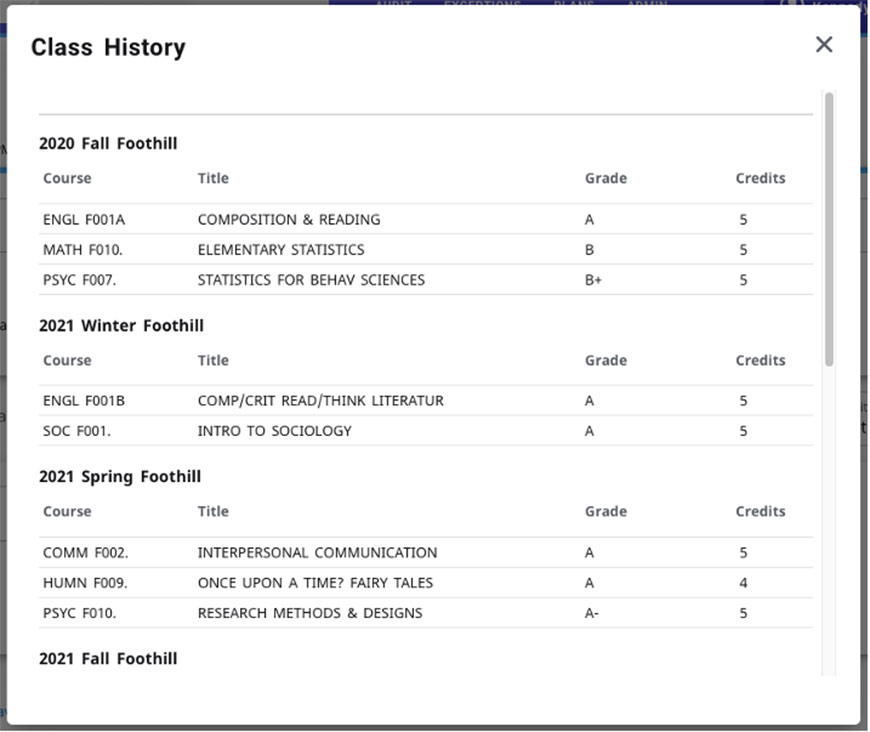
The Class History function will provide a record of all courses taken at Foothill and De Anza colleges. Classes from other colleges will appear if an official transcript evaluation has been completed.
You can view course information, grades earned, and credits earned.
Note: This feature currently does not indicate whether a course has been repeated, redlined, included/excluded from GPA, or has an academic renewal applied. It also does not provide term and cumulative GPA and units earned. Check your transcript in Banner or Student Dashboard in MyPortal for specific details.
The legend found at the bottom of the page represents the following:

- Complete: A green checkmark will appear besides all requirements within the audit that have been completed.
- Not Complete: An empty red circle will appear besides all requirements within in the audit that have not been completed.
- Completed except for classes in-progress: A blue half circle will appear when the student is registered class registered for will fulfill the requirement.
- Nearly Complete – see advisor: This symbol will appear when requirements are almost complete. However, there is a component that may not be met. For example, if it’s the last course of a set of four, but the minimum GPA for the four classes is a 2.00, and the student currently has a 1.97 within the three graded courses, the requirement may not complete if the student only receives a C in the fourth course.
- Prerequisite: A clipboard icon will appear for a course that must be completed with a satisfactory grade before enrolling in another course.
- Any course number: Any course number (@)-wildcard to represent any missing applicable number. For example, MATH @ means any MATH course.
- Repeated class (R): May be courses that were audited after passing; failed, excluded, and repeated; withdrawn and repeated; redlined; or approved for academic renewal. To learn what type of “R” is represented, check transcripts in Banner or Student Dashboard in MyPortal.
Use the Plans function to create or revise an educational plan.
After opening the Plans tab, select New Plan to start a new ed plan, or select Plan List and click on an existing plan to make changes.
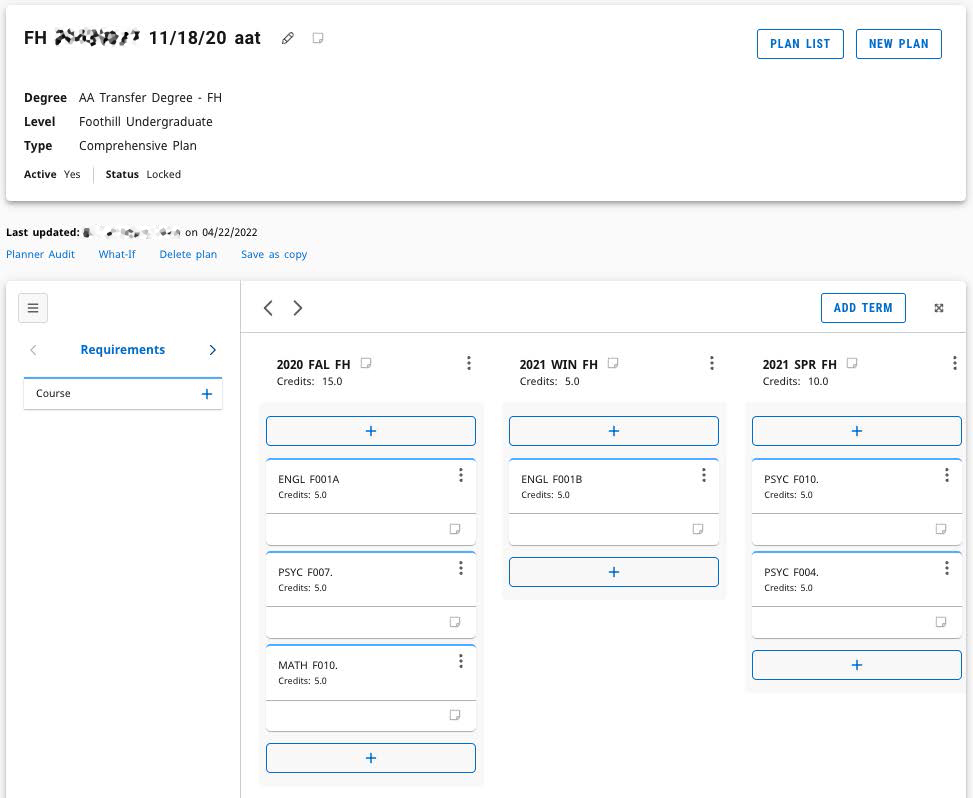
There are multiple ways to add courses to a plan.
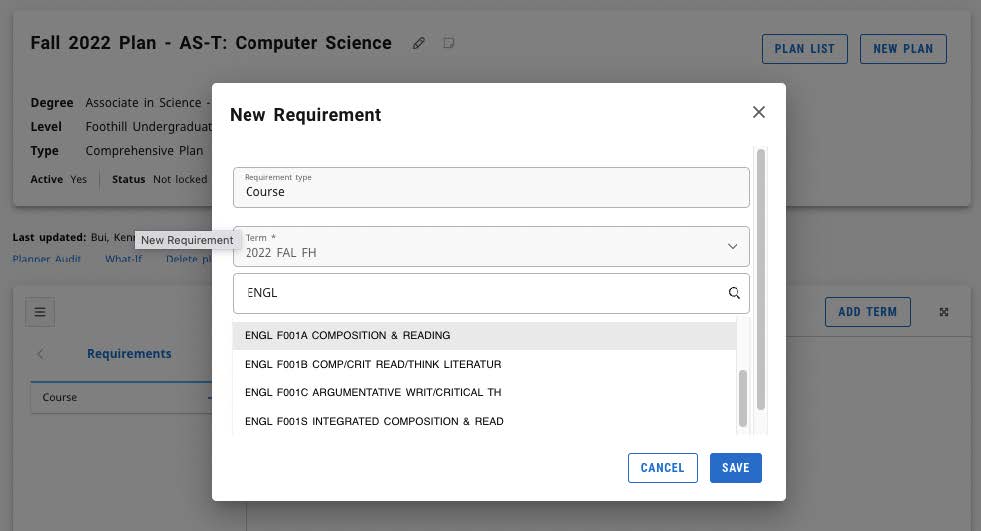
If you know the department and course number you want to add, select Requirements and then select Course +. You can quickly add courses by typing in the department and course number in the search bar:
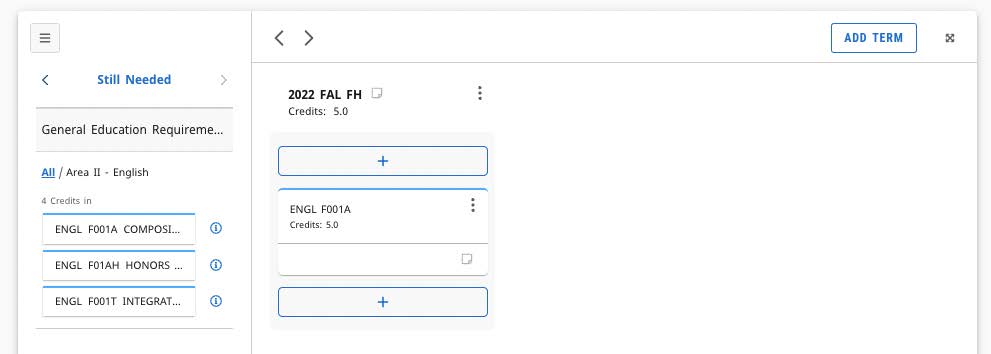
If you want to add a course that’s required for your major, select Still Needed and drag the course from the list that appears:
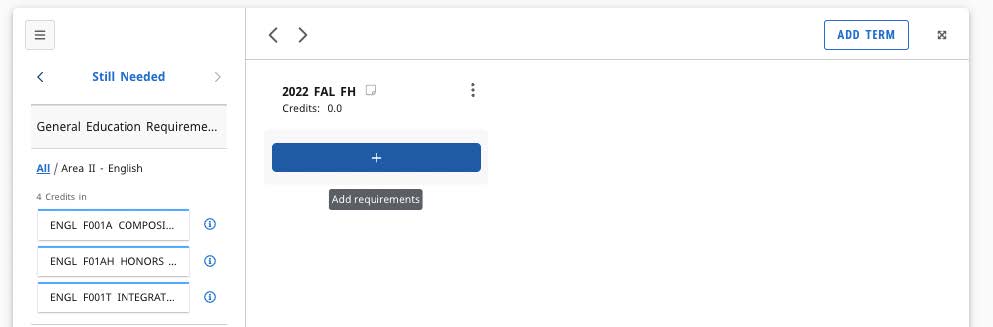
To add multiple courses, use the + sign under a term and select a subject from the dropdown menu:
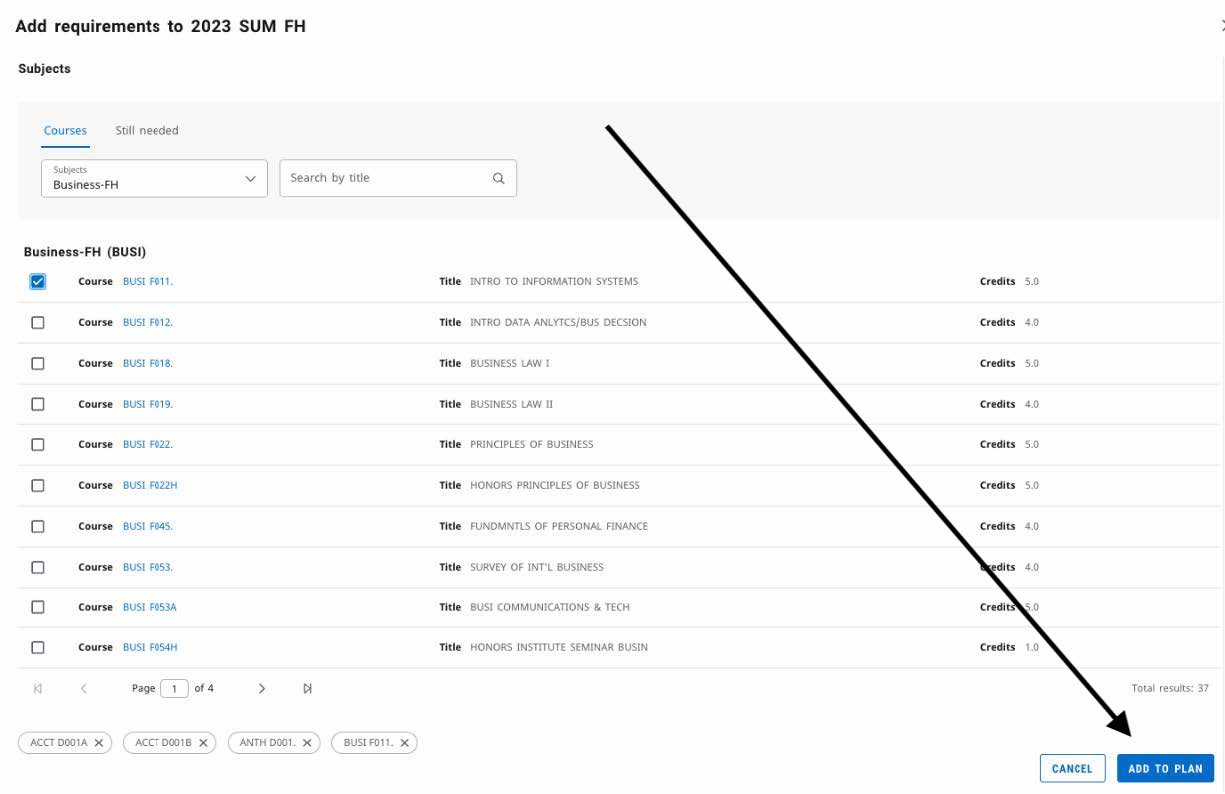
Then click on the check box for the desired course, confirm your selection and select Add to Plan:
Use the Audit function to check your progress toward a degree or certificate. (This was called “Worksheets” in the old Degree Works.)
Select Audit in the blue bar at the top of your screen, then choose Academic Audit or What If?
Academic Audit will show your progress toward your current goal:
You can use the What-If tool to try out different scenarios

Contact UsCounseling CenterStudent Services Building 8300, Room 8302(650) 949-7423 fhcounseling@fhda.edu |
