
Email Communications
Keep Your Student Email Address Current
Foothill College uses email as the primary way of communicating with former, current, and future students.
NOTE: An email address shared between Foothill applicants will prevent the creation of your student MyPortal account.
You'll need a valid, unique email address to receive notification of the following:
- If you've been admitted to Foothill College
- Your confirmation of enrollment for each quarter
- If a seat in a waitlisted class has opened up, you'll be notified by email.
- Other important information, such as fees payment
- Weekly student email messages about what's happening on campus and other opportunities beyond the classroom
Request a Foothill College Email Account
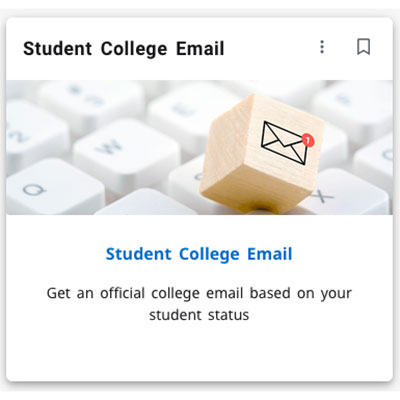 If you're a current Foothill student, you can request a college email account by using the Student College Email tile
listed in MyPortal. This will give you an email address ending in @student.foothill.edu.
If you're a current Foothill student, you can request a college email account by using the Student College Email tile
listed in MyPortal. This will give you an email address ending in @student.foothill.edu.
- Log in to MyPortal and look for the Student College Email card.
- When you click on the card, you'll see instructions for submitting your request online.
- Your address will include your last name and legal first name, like this: lastnamefirstname@student.foothill.edu.
As an alternative, you can use a preferred first name, provided you follow the online instructions for adding your preferred name to your records in the Admissions Office:
- Log in to MyPortal and click on the Student Registration card
- Look under "My Profile" and select Add My Preferred First Name (Foothill)
- If you choose this option, your email address will look like this: lastnamepreferredname@student.deanza.edu.
- Once you submit your request, you'll receive a confirmation sent to your primary email address (the personal account that you used to apply or register for classes), with instructions on how to access your new account through Office 365 or MyPortal.
These accounts are only intended for registered students. Once you stop taking classes, your email account will be deactivated after one quarter has elapsed, unless you resume taking classes. Note: Foothill-De Anza district employees are not eligible because they have employee accounts.
Updating Your Primary Email Address for Registration
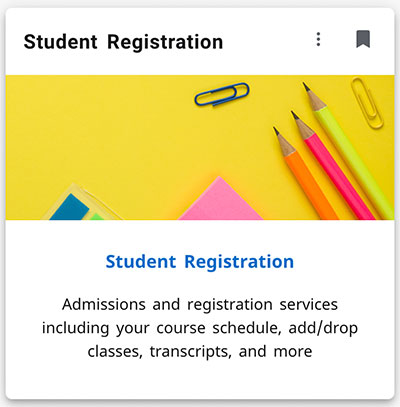 Applying for a college email account won't change the primary email address that's associated with your registration records.
If you do need to change your primary address for registration, follow these steps:
- Log in to MyPortal and click on the Student Registration card
- Look under "My Profile" and click on Update My Personal Information
- Select View Email Addresses
- Select Update Email Addresses
- Follow the instructions on your screen
NOTE: It's recommended that you do not use the @student.foothill.edu account as your primary address for registration or other important activities, since the college email account will be closed after you leave the college.
A Few FAQS
During registration periods, you will receive payment reminders, important deadline dates, and additional instructions on how to pay your tuition and fees whenever you register for or add classes. If you do not pay your tuition and fees, you will receive payment reminders.
Applicants to Foothill College will receive an acknowledgment email message within 24 hours of applying. Applicants may receive reminders about enrolling and/or invitations to complete surveys about college services and courses. Remember to keep you email address up-to-date in your MyPortal account.
Outside of the registration period, the college sends weekly communication emails to enrolled students that may contain:
- important dates
- registration information
- news and events
- opportunities outside the classroom
TIP: When you check your grades each quarter, remember to verify your primary email address at the same time. If it's different than the email you currently use, update it using the same steps to change your primary email address.
- Log in to MyPortal and click on the Student Registration card
- Look under "My Profile" and click on Update My Personal Information
- Select View Email Addresses
- Click Update Email Addresses if it is different than the email you are currently using.
- Follow the instructions on your screen

Contact UsAdmissions and RecordsStudent Services Building 8100,Room 8101 650.949.7325 admissions@foothill.edu A & R Help Form |
