
Add & Drop Classes
How to Add and Drop Classes
You can add or drop classes in MyPortal. Before making a change, check the dates for your specific class. Add periods and drop deadlines may vary by class.
Use the instructions below, or visit the MyPortal Registration Guide for screenshots and more registration help.
Adding a Class
Register in MyPortal when your registration date and time begin. Search the class schedule for available classes, and review the academic calendar for general dates.
An add code is an instructor’s permission to add a class. Receiving a code does not complete your registration. You must enter it in MyPortal, click Submit, and confirm that your status changes to Registered.
For standard 12-week classes, the add code period is generally the first two weeks of fall, winter, and spring quarters. For summer session, it is generally the first week. Check the dates for your class, especially if it has a different start date or length.
- Register in MyPortal as soon as your registration date and time allow.
- You can generally register for an open in-person or hybrid class through the day before that class begins, provided you meet its prerequisites.
- Review the class schedule for the class start date, meeting format, available seats, and instructor information.
In-person and hybrid classes: If the class is full or waitlisted, or you want to add it on or after its first meeting, contact the instructor to request an add code. Instructors do not issue add codes for in-person and hybrid classes before their class’s first meeting. You can find contact information in the faculty directory or by selecting the instructor’s name in the class schedule.
Fully online classes: After the quarter begins, you need an add code even if the class shows an open seat. Follow the Online Learning add code request instructions to request a code through the Foothill Online Classes Add Request card in MyPortal. An instructor may choose not to issue add codes or use that request feature.
An instructor must give you an add code before you can use the steps in the next accordion.
Important: Instructors will not issue add codes for in-person and hybrid classes until the first day that their own class meets.
The Add Code is the instructor's permission for you to add the class in MyPortal.
- Log in to MyPortal.
- Open the Student Registration card and select Registration Dashboard.
- Select Register for Classes, then choose the term and Foothill College.
- Select the Enter CRNs tab. Enter the class’s five-digit course registration number (CRN) and select Add to Summary.
- If an authorization code window appears, enter the add code your instructor gave you and select Confirm.
- Find the class in your Summary. Its status should show Pending. Make sure Web Registered is selected under Action.
- Select Submit.
- Confirm that the class status changes to Registered. A Pending status means registration is not complete.
For screenshots, see Adding a Class with an Add Code in the MyPortal Registration Guide. If you receive an error, read the message and check for prerequisites or registration holds. Contact Admissions & Records if you need help.
If you are waitlisted for the same class for which you received an add code, you must remove the waitlisted class from your Summary before the add code entry window will appear.
- In MyPortal, open Student Registration → Registration Dashboard → Register for Classes.
- Choose the term and Foothill College.
- Find the waitlisted class in your Summary. Under Action, select Web Dropped, then select Submit.
- Select the Enter CRNs tab, enter the CRN for that class, and select Add to Summary.
- Enter your add code in the authorization code window and select Confirm.
- Make sure Web Registered is selected under Action, then select Submit.
- Check that the class status says Registered.
Complete all of these steps during the applicable add period. If you cannot register after dropping your waitlist status, contact Admissions & Records promptly.
Dropping a Class
You are responsible for officially dropping a class you no longer want. Stopping attendance does not drop the class.
Refund and withdrawal deadlines may differ by class. Check the dates for Drop with a Refund, Drop without a “W”, and Drop with a “W” before submitting a drop.
- Log in to MyPortal.
- Open the Student Registration card and select Registration Dashboard → Register for Classes.
- Select the term and Foothill College.
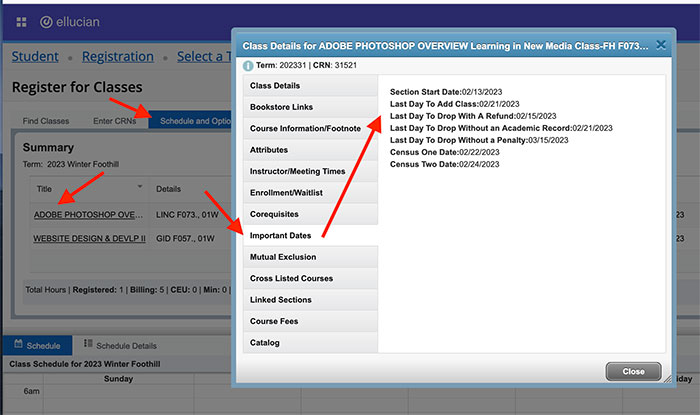
- Open Schedule and Options, select the class title, then select Important Dates to review its drop deadlines.
You can also review the academic calendar for general term dates. Use the dates shown for your specific class when deciding when to drop.
-
- Log in to MyPortal.
- Open the Student Registration card and select Registration Dashboard → Register for Classes.
- Select the term and Foothill College.
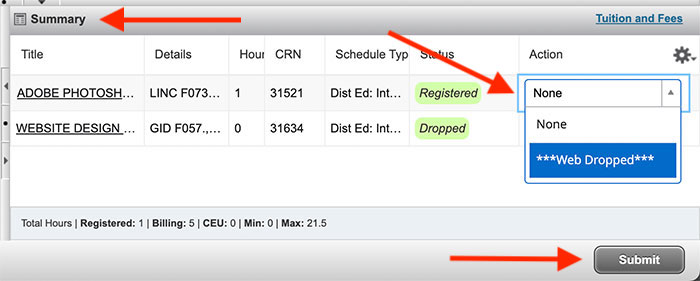
- Find the class in the Summary section.
- Under Action, select Web Dropped, then select Submit.
- Check for the Save Successful message and verify that the class no longer shows as registered.
Review the class and its deadline carefully before submitting. If you dropped a class by mistake, you may need to register again, and a seat may no longer be available.
If you cannot drop a class in MyPortal, complete and sign the drop request form. You may submit it in person at the Admissions & Records Office, fax it to 650.949.6979, or attach it to the A&R Help Form. If submitting an attachment, download, complete, sign, and scan the form first.
Contact Admissions & Records if you are unsure whether your drop request was received or processed.
If you do not officially drop a class by the applicable deadline, you may be responsible for enrollment fees and may receive a failing grade on your transcript. Check your class deadlines in MyPortal and confirm that any drop you submit is successful.
Answers to Your Questions
If you have a registration problem, receive an add code error, or need help checking a deadline, contact Admissions & Records through the A&R Help Form or call 650.949.7325.

Contact UsAdmissions and RecordsStudent Services Building 8100,Room 8101 650.949.7325 admissions@foothill.edu A & R Help Form |
