
Online Payment
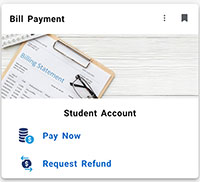 Students may pay registration fees and view account activity at any time using the
Bill Payment system inside MyPortal
Students may pay registration fees and view account activity at any time using the
Bill Payment system inside MyPortal
To access the Bill Payment options, log in to MyPortal, click Bill Payment tile, and select Pay Now or Refund Request.
Bill Payment Features
The bill payment system includes these primary selections: View Your Account Balance; Pay Now; Refund Request; Payment Plan; and Student Statements.
My Account
- View account activity by quarter.
- Add and change payment methods.
- Add, edit and delete authorized users.
- Note: If you have recently attended both Foothill and De Anza College, select the View Account dropdown button to check account status for both colleges.
Payments
- Make payments.
- View scheduled payments and payment history.
Payment Plans
- Enroll in a payment plan.
- View details of current or previous plan.
- See Installment Plan for more payment plan information.
Authorized Users for Payment
A student may designate a parent, guardian or another person to be an authorized user
for online payment.
Follow these steps to establish access to add designated authorized users.
- Access Bill Payment card in MyPortal.
- Select "Authorized Users" under the My Account Tab.
- Establish Authorized Users:
- To designate an authorized user, enter an e-mail.
- The authorized user will then be sent an e-mail with a password and access instructions.
- Once access has been established, the authorized user will be able to access student account information.
Online Payment Troubleshooting Guide
If the attempts below do not work, you can contact the Cashier's Office for further assistance.
- Only students in good standing with a balance due of $50 or more for the current quarter are eligible to enroll in an installment plan. The online payment plan is not available for prior term balances.
- If your current account balance is a negative number or zero, you either have a credit balance or you do not owe any fees at this time.
- Check your card expiration date, bank account balance for sufficient funds, and verify with your financial institution what your daily debit/credit card limit is.
- Additionally, check that you have entered the entire credit card number as well as the CVV security code from the back of your card.
- The Touchnet online payment gateway may be unable to get an authorization code from your credit card or issuing bank. You can delete your saved payment method by going to the ‘Payment Methods’ section in Touchnet. After deleting your saved payment method, reenter and save your updated card information.
- Try using another browser. Avoid using Google Chrome when accessing your MyPortal or making an online payment. There are compatibility issues with the Chrome browser.
- Clear your cache/history.
- Temporarily disable your popup blocker since TouchNet opens as a popup window.
- Try using a different computer.
Note:
The payment gateway sends emails from campuspayments@touchnet.com. To ensure delivery, we recommend adding this address to your contacts or safe-sender list and avoiding marking messages from this address as spam or junk.

Contact UsCashier's OfficeStudent Services Building 8100, Room 8101650.949.7331 foothillcashiersoffice@foothill.edu A & R Help Form |
