
Request Canvas Section
Request Another Canvas Section
If you have already created your Canvas course and are assigned to a new section at a later date, you can easily add it to your existing Canvas course site.
Download Add a new section to a Canvas Course (pdf).
In MyPortal
- Log into MyPortal (https://myportal.fhda.edu).
- Click on the Apps located in navigation on the left.
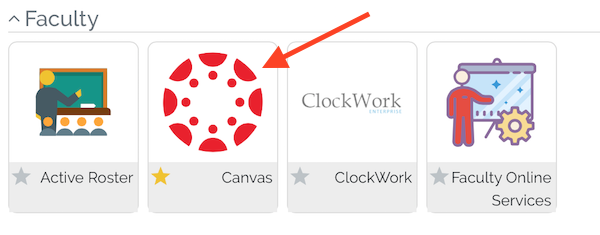
- Click on the Canvas icon.
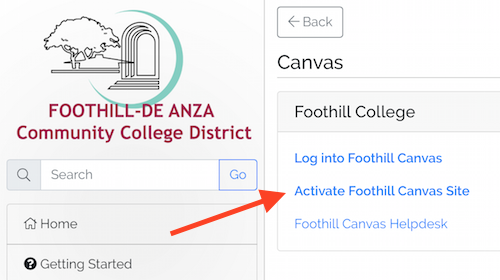
- Click on "Activate Foothill Canvas Site".
- Click on "Select a Term" drop-down menu.
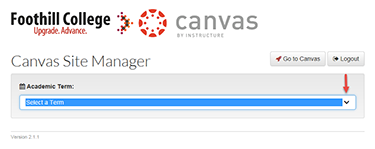
- Select the appropriate term.
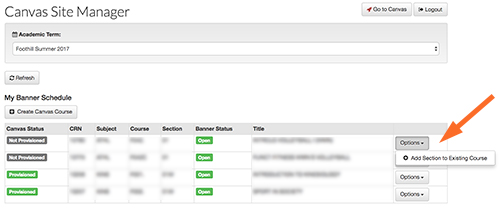
- Under 'My Banner Schedule', locate the course section you would like to add to your existing Canvas course.
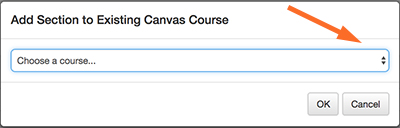
- Click on the 'Option' menu of your new section and 'Add Section to Existing Course'.
- Select the course where you would like to add the section.

Contact UsOnline Learning Officeonlinelearning@foothill.eduCanvas Help Hotline 24/7 833.300.3461 Check Canvas Status Admissions and Records 650.949.7325 |
