
Online Learning

Manage Zoom Recordings
We are limited in the amount of storage we have available to store Zoom recordings so we strongly encourage you to take some time to delete or archive recordings that you will not be using.
Delete Zoom Recordings
- Log in to your Zoom account (https://fhda-edu.zoom.us/) using your MyPortal username and password.
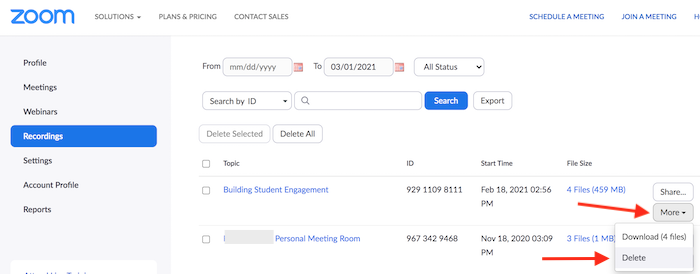
- Select Recordings from the left-hand side of the screen. You may have the option of
viewing Cloud and Local Recordings. Make sure to select Cloud Recordings. If that
option is not shown it means that you automatically record to the cloud.
Archive Zoom Recordings
Step 1: Download from Zoom
- Log in to your Zoom account (https://fhda-edu.zoom.us/) using your MyPortal username and password.
- Select Recordings from the left-hand side of the screen. You may have the option of viewing Cloud and Local Recordings. Make sure to select Cloud Recordings. If that option is not shown it means that you automatically record to the cloud.
- You can select a range of dates or scroll to the recordings you plan to download.
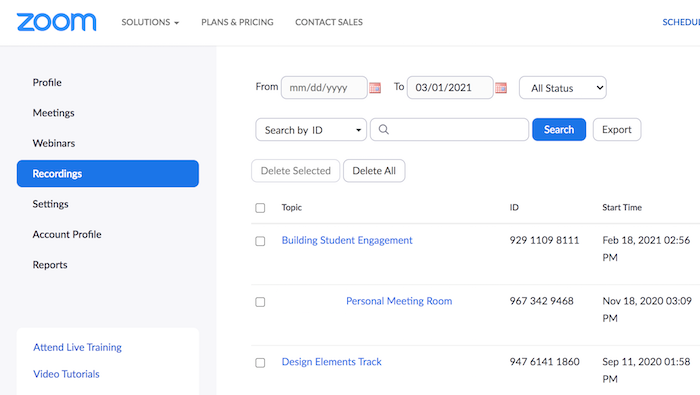
- Click the name of the recording you wish to download.
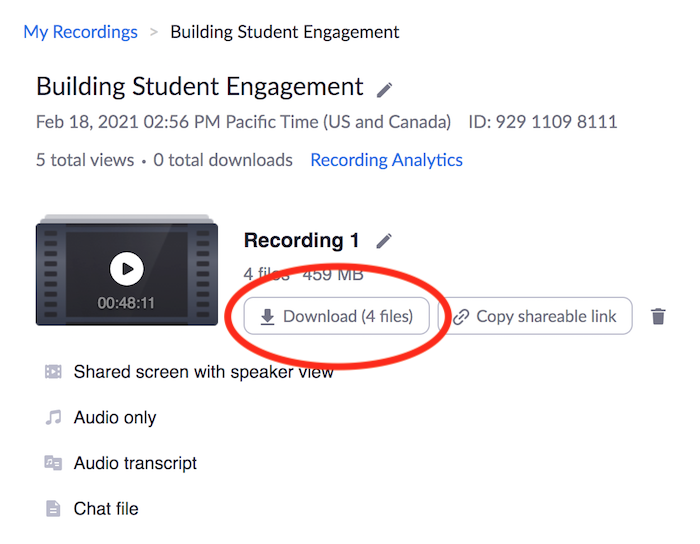
- In the window that appears, click the Download button. This will download all files
associated with the recording, including the audio transcript. You may want this file
to use as your captioning file.
Step 2: Store Your Recordings for Sharing
You can store your videos in permanent cloud storage:
- Canvas Studio - Recommended for instructors who share videos in their Canvas classes and for whom
auto-captioning or the Zoom caption file will work.
- 3CMedia - Recommended for instructors who need professional captioning (offered on a limited
basis) or for instructors who need to share their videos outside of their FHDA classes.
You will need an account and should use your fhda email when signing up
- Office 365/One Drive - Recommended for non-instructioinal videos that may be shared on websites. First,
access Office 365 via MyPortal and click on OneDrive. You will want to upload the
MP4 of your video that includes the Audio Transcript. You should not upload/share
videos that don't have captioning/audio transcripts.
Step 3: Update Links to Videos in Canvas/On Your Website
If you previously shared your Cloud Recordings in Canvas or on a Website, you will need to update the links using the Sharing Guides above.
Need Help?
Visit our Online Learning Office Hours.